Skip to content
  • 615-353-3678
  • ServiceDesk@nscc.edu

Hours: Monday - Friday | 8AM - 4:30PM

Login
  • myNSCC
  • NS Online
  • Student Email
  • Student Printing
  • Lookup “A” Number
  • Reset Password
  • —- Employees —-
  • Employee Email
  • My Tickets
  • Banner 9 (Application Nav)
  • Banner ePrint
  • Argos PROD
  • SciQuest PROD
NSCC Logo

  • Home
  • Most Requested
    • Email MFA Setup
    • Student Handouts
      • Student Wi-Fi
      • Microsoft Office for Students
      • Student Campus Printing
    • TSD Forms and Links
    • Clear Browser Cache
  • Students
    • Knowledge Base
    • Student MFA Setup
    • Equipment Loan Form
    • Student Handouts
      • Student Wi-Fi
      • Microsoft Office for Students
      • Student Campus Printing
    • Software
      • Install office 365
      • Azure Software
      • TextHelp Read and Write Gold
      • YuJa Verity Lockdown Browser
      • External Software
        • Notepad ++
        • FileZilla
          • FileZilla – Windows
          • FileZilla – Mac OS
      • Browsers
        • Google Chrome Installer
        • FireFox Installer
      • External Support
        • TN eCampus
        • Pearson (mylabs)
        • Cengage
        • REVEL
        • RedShelf
  • Employees
    • Knowledge Base
    • Email MFA Setup
    • My Tickets
    • VPN Install Instructions – SonicWall Connect Tunnel
    • TSD Forms and Links
  • Remote Support
  • Submit Ticket
  • Contact Us

Personal File (P: Drive)

Skip to main content

How Can We Help?

Accessing your P drive files

TSD has moved all P drive files to Office 365 OneDrive. You can access these under your OneDrive account. 

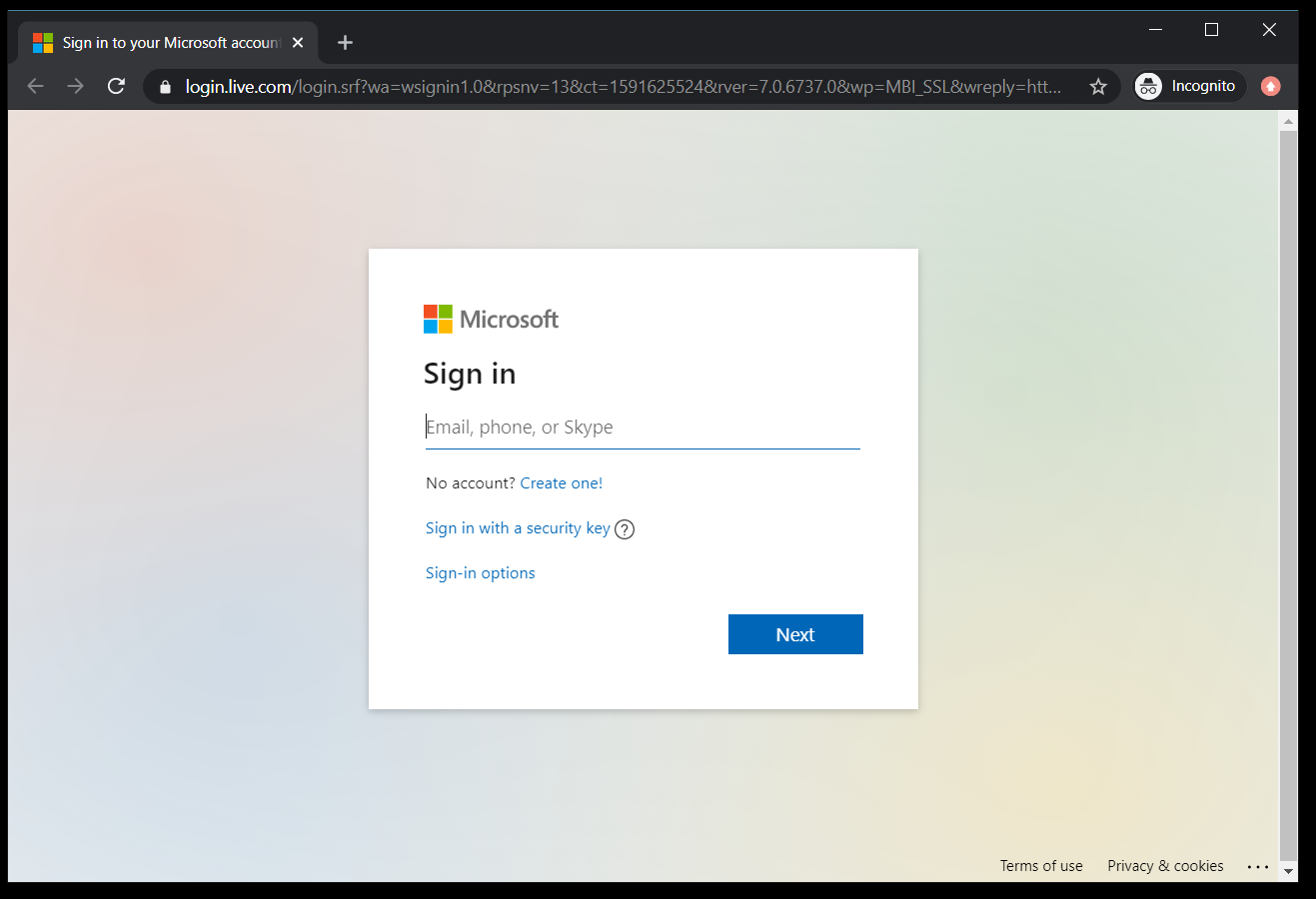
  1. ) Login to your email account – https://outlook.live.com/owa/?nlp=1

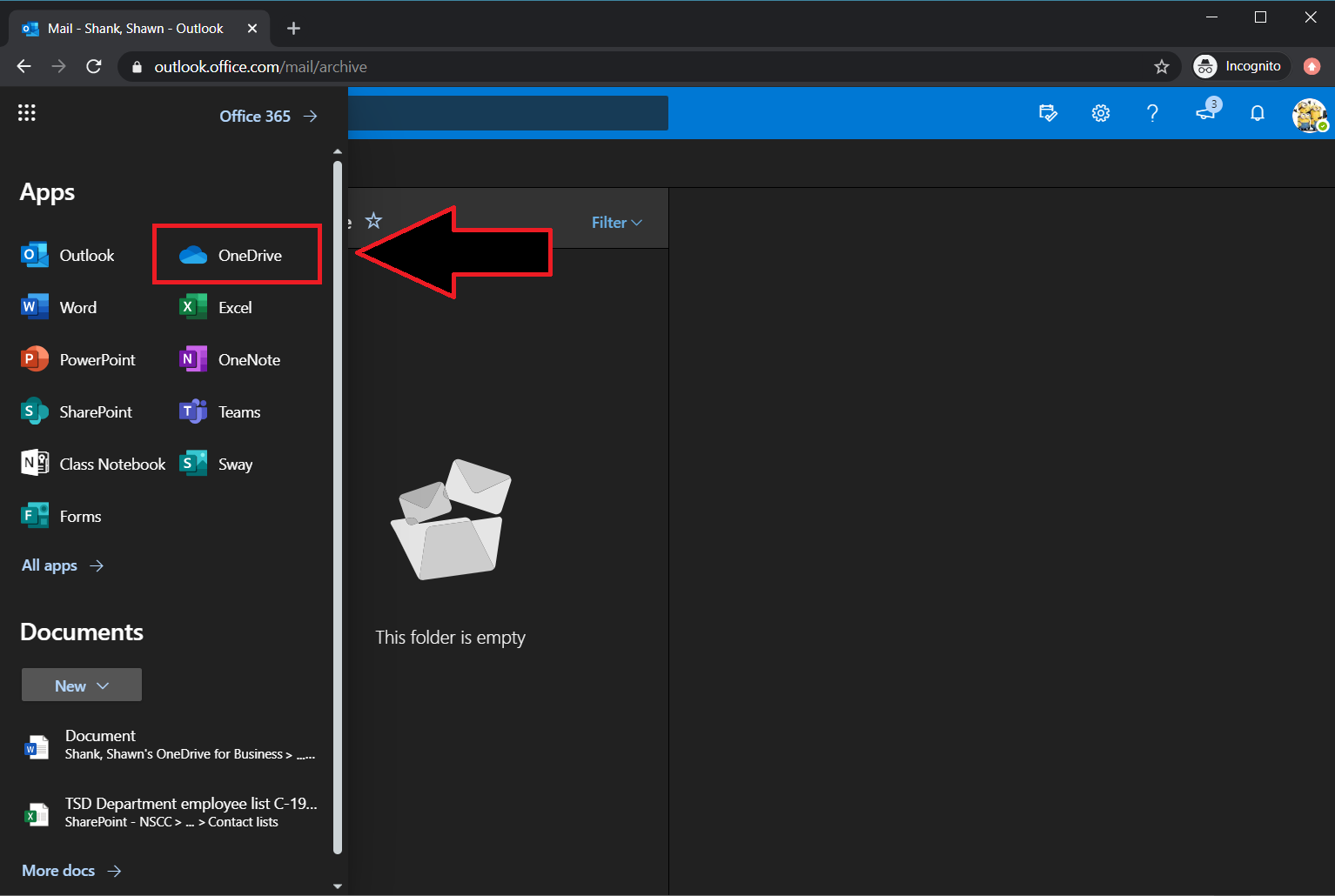
2.) Once under your email click on the 9 dots ( waffle icon ) 

3.) Click on OneDrive

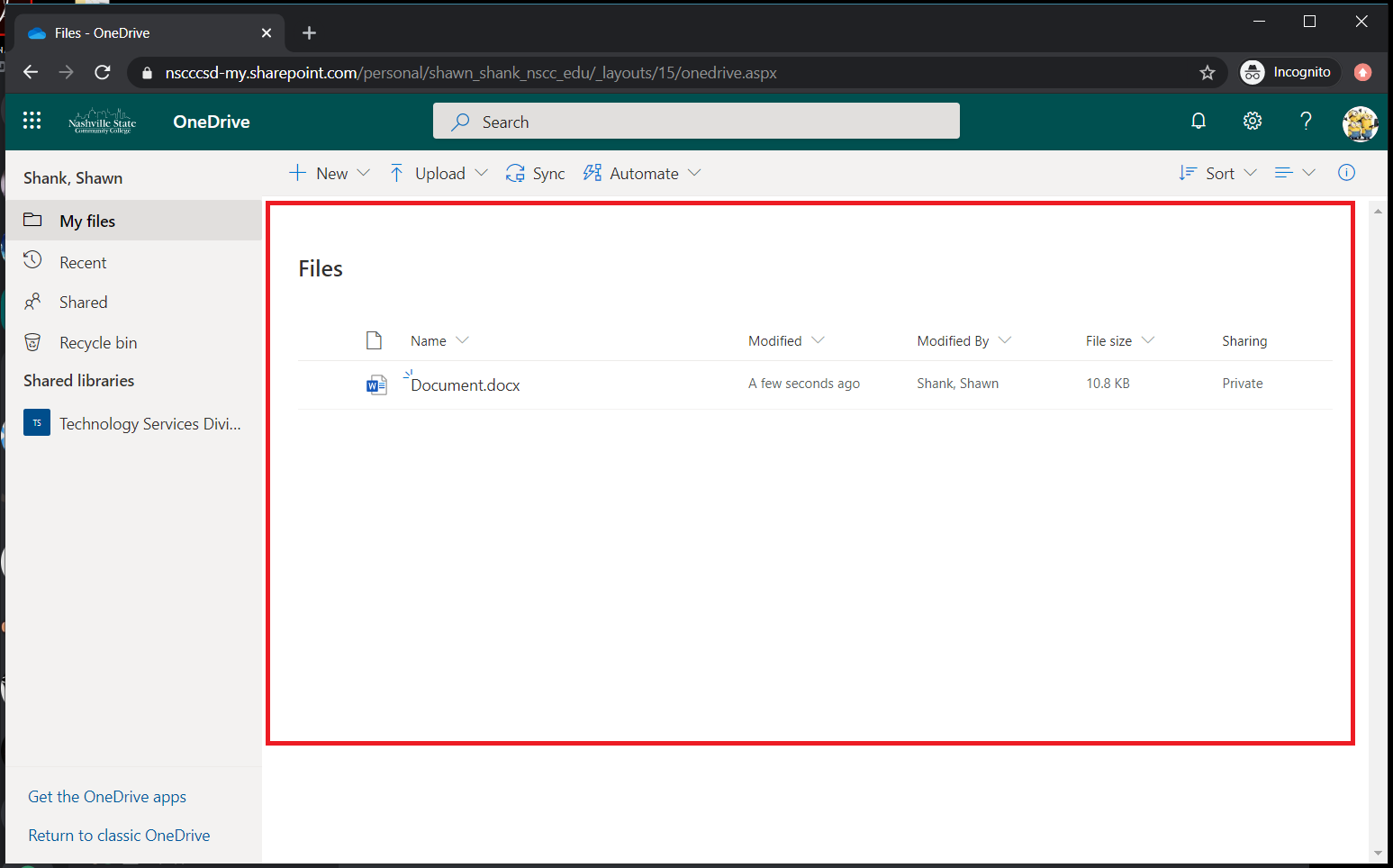
4.) You will now see the files under the root of this next screen.

If you have any issues please click here.

Nashville State Service Desk
Kisber Building - Room K-106
120 White Bridge Pike
Nashville, TN 37209